YouTube End Screens: Setup Rules and a Next-Step Map for Businesses
YouTube end screen rules (25-second minimum, last 5–20 seconds, up to four elements), how to add one, and how to plan the next step for each video.

The short answer
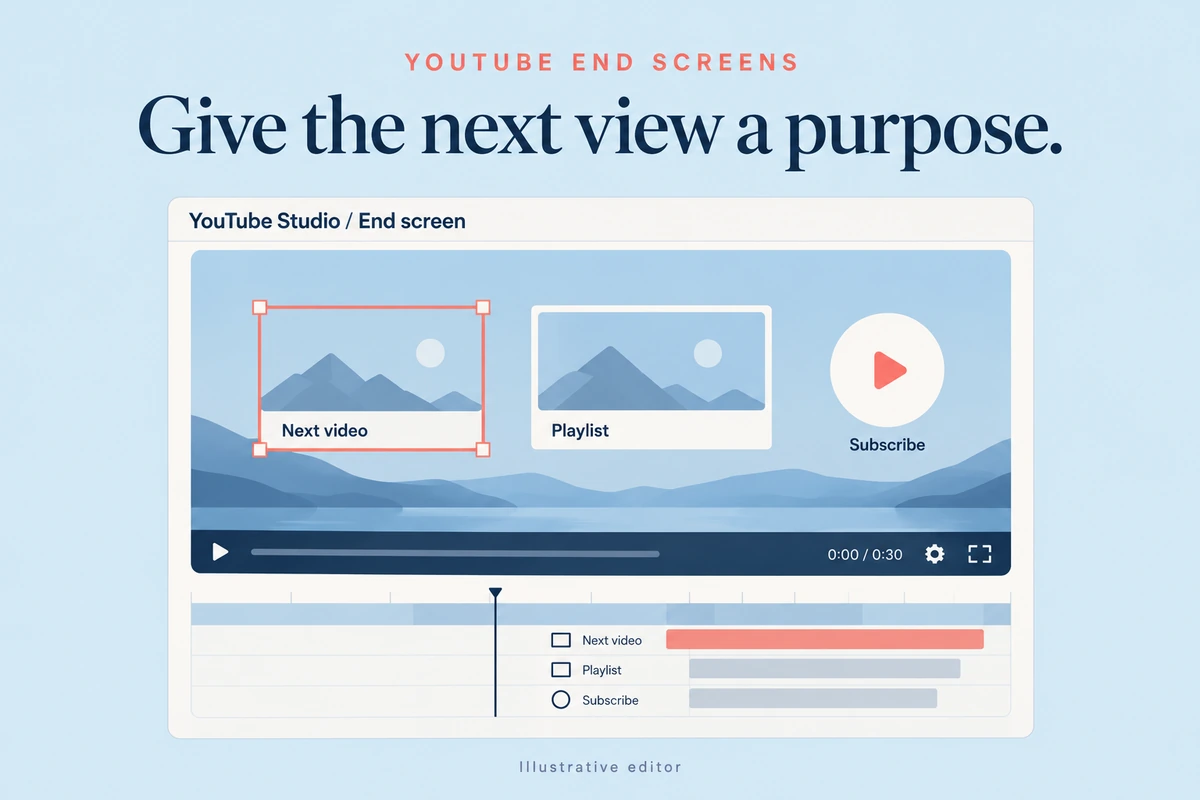
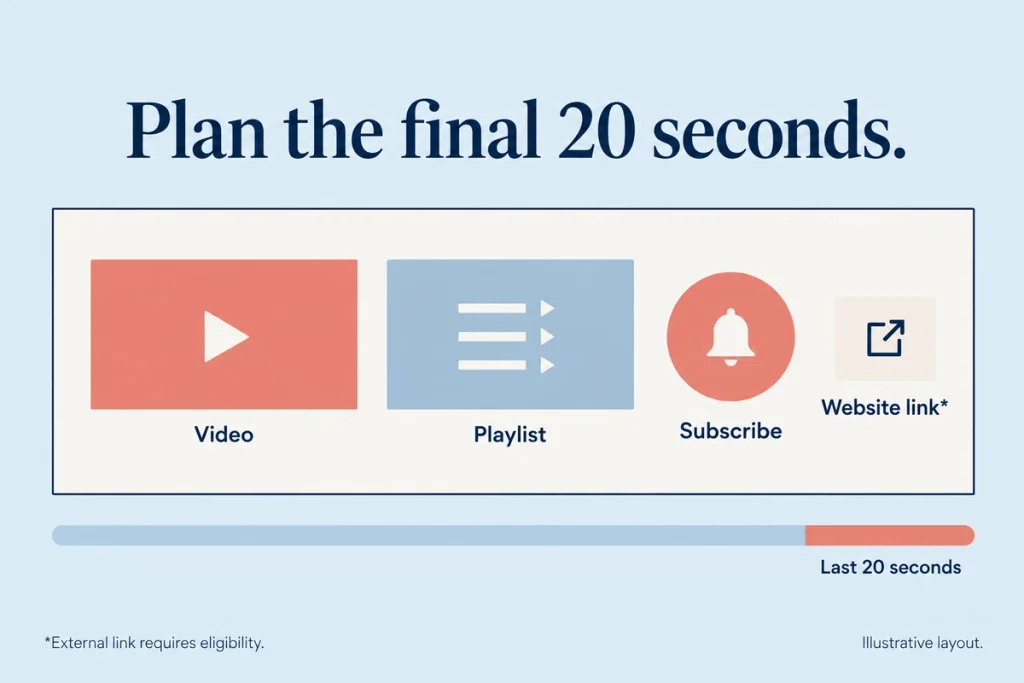
A YouTube end screen is the clickable panel in the last seconds of a video that points viewers to another video, a playlist, a subscribe button, another channel or (for YouTube Partner Program members) your website. The rules, from YouTube Help: your video must be at least 25 seconds long, the end screen can run in the last 5 to 20 seconds, and you can add up to four elements on a 16:9 video. End screens aren’t available on videos marked as made for kids. For a business, plan what each video should lead to next. That’s what turns a view into a lead.
End screen rules at a glance
- Minimum video length: 25 seconds
- Position: the last 5–20 seconds
- Elements: up to four on standard 16:9 videos (other ratios may allow fewer)
- Element types: video (a specific one, most recent upload, or “best for viewer”), playlist, subscribe button, channel, and external link (YouTube Partner Program members only)
- Not available on: videos made for kids; some surfaces such as the YouTube Kids app, YouTube Music app, mobile web (except iPad) and 360° videos
- Viewers can hide end screens, and card teasers and watermarks are suppressed while the end screen shows
How to add an end screen
- Open YouTube Studio › Content › select the video
- Go to Editor (or the End screen option in video details, depending on your Studio version)
- Choose a template or add elements one by one
- Pick what each video element shows: a specific video, a playlist, or “best for viewer”
- Drag elements into position and set their timing
- Save
Plan space for the end screen when editing. Leave 10 to 20 seconds at the end with a simple background and a spoken prompt: “Watch this next.”
Why business channels should care
Each click on an end screen starts another view on your channel, which adds watch time. More importantly, end screens let you guide a viewer through a sequence you design, from problem to solution to sale.
The Next-Step Map
Plan the next step by video type, rather than always linking to “latest upload”.
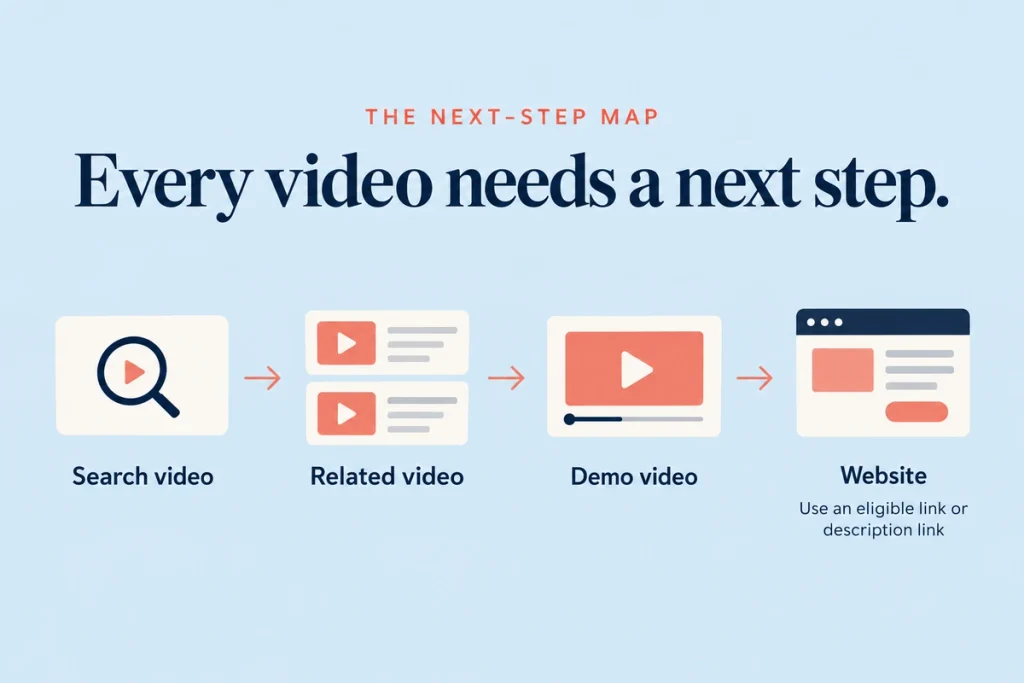
Search video → a deeper related video.
“How much does a modular kitchen cost in Pune?” → “5 materials that decide your kitchen’s price”.
Deeper video → a proof video.
“5 materials…” → “Before and after: a 9-by-7 kitchen we redesigned in Baner”.
Proof video → the sales library.
Customer story → “How our design process works, and what it costs”.
Sales-library video → your website or WhatsApp.
If you’re in the Partner Program, use a link element. If not, point to the video whose description holds your booking link. See description links.
Every video → subscribe element.
It costs one of your four slots but pays off for subscriber growth.
A typical business layout: one “next video”, one playlist, one subscribe button, and either a link element (if eligible) or a second video.
End screens vs cards
Cards appear during the video, as a small teaser. YouTube allows up to five cards per video: video, playlist, channel, or link (Partner Program members only). YouTube’s Help page notes cards show below the description and are visible on desktop.
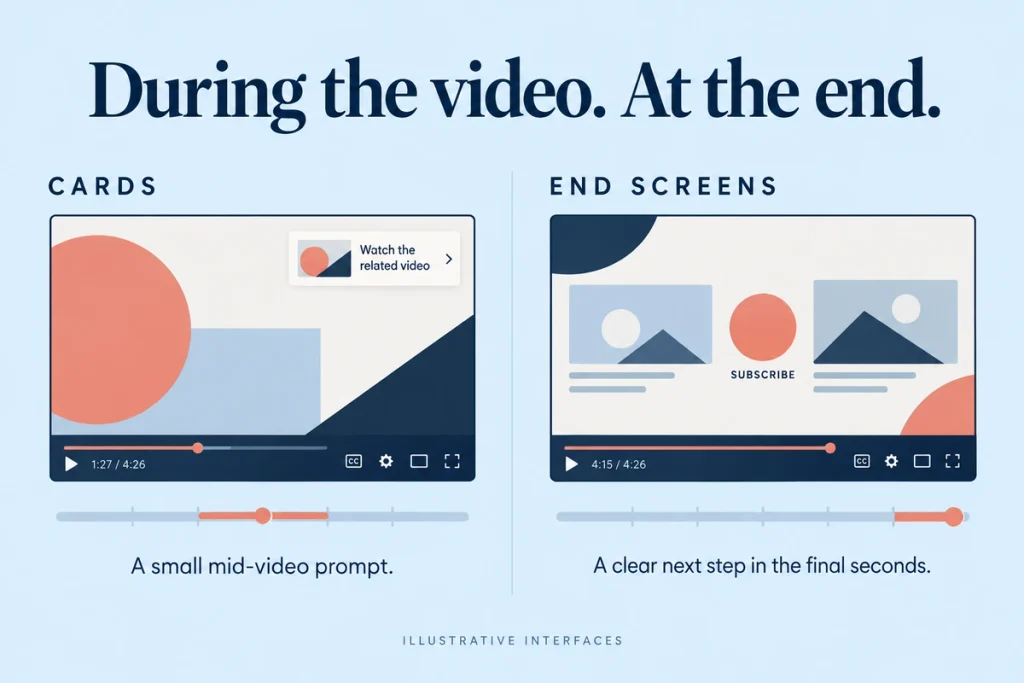
End screens appear only at the end, are larger and more clickable.
Use cards mid-video when you mention another video (“I explained GST basics in a separate video”). Use the end screen for the planned next step.
Why you can’t add an end screen
Check these first:
- The video is under 25 seconds
- The video is set as made for kids
- You’re trying to add a link element without being in the Partner Program
- The video is a Short (Shorts use related-video links, not end screens)
Mistakes to avoid
Always “latest upload”. Your newest video isn’t always the right next step.
Talking over the end screen with new content. Viewers miss it. Keep the end section clean.
Four elements crammed together. Two well-chosen elements often get more clicks than four.
No spoken prompt. Tell viewers what to click and why.
Checklist
- Last 10–20 seconds left clear in the edit
- Spoken “watch this next” prompt
- Next-Step Map written for each video type
- Subscribe element on every long video
- Playlist element for series
- Link element (if Partner Program) or a video that holds the booking link
- Cards added where you mention another video
Questions we get asked
Can Shorts have end screens?
No. End screens are for long-form videos of at least 25 seconds; Shorts use other linking features.
Can I copy end screens to other videos?
Yes. Studio lets you import an end screen from another video, which saves time.
Do end screens help SEO?
Not directly. They increase views per session and watch time, which helps your channel overall.
Final thoughts
An end screen is your cheapest sales path on YouTube. Plan the next step for each video, keep the end clean, and ask viewers to click. It’s a small piece of YouTube marketing with outsized returns.
Want your channel’s video paths mapped? Book a consultation. You can reach out to us on whatsapp at +91 7738844851 .
More in Blog
Keep reading
All articles →
Ready to talk about your growth?
Tell us what's stuck and we'll tell you what we'd do first. Free, 30 minutes, no pitch.